

Odin3
About Odin3
For Samsung Android device owners who venture beyond what the standard system updates allow, Odin3 is one of those tools that eventually comes up in research. Originally developed by Samsung as an internal utility for their own technicians and authorized service centers, this software has become widely known in the Android community as the standard way to flash firmware onto Samsung devices, install custom recoveries, recover bricked phones, and perform various other low-level operations that aren’t possible through the regular user interface.
It’s worth being clear about what this software actually is and isn’t. Odin3 isn’t an officially distributed consumer application. It’s a Samsung internal tool that has circulated publicly through unofficial channels for many years, used by enthusiasts, repair technicians, and Android modders.
The XDA Developers forum is generally considered the most reliable source for verified versions of the software.
What this software actually does
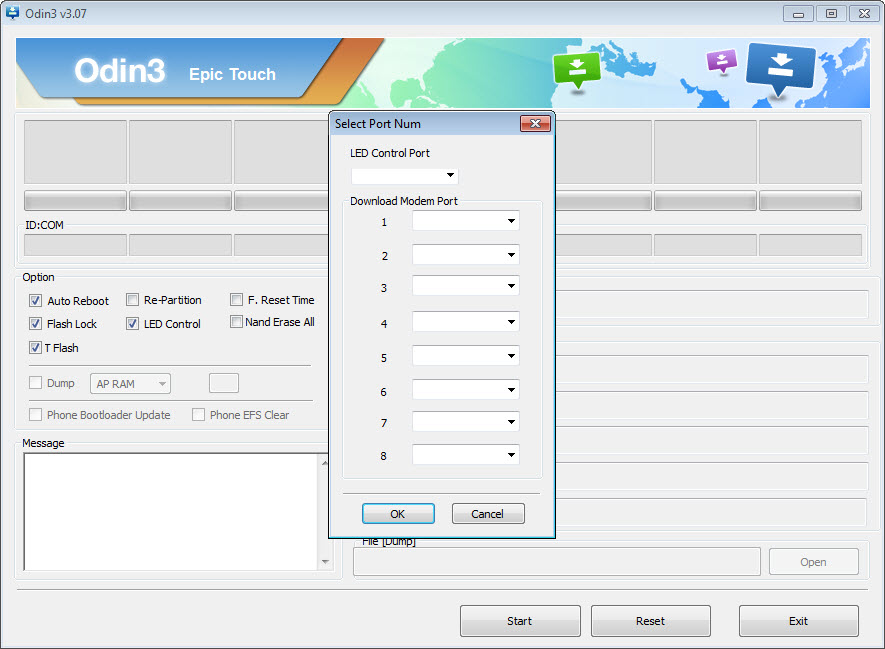
The basic function of Odin3 is communicating with Samsung devices in download mode (also called Odin mode) through Samsung’s proprietary thor protocol. This communication channel allows the application to write firmware images directly to various partitions on the device, replacing the existing software with whatever firmware files the user provides.
This capability covers several common scenarios. Users can install official firmware updates that haven’t yet been pushed to their device through normal update channels, downgrade to older firmware versions when newer ones cause problems, install firmware from different regions (with appropriate hardware compatibility), or completely restore a device to factory firmware after experimentation has gone wrong.
For technical users who understand what they’re doing, this direct firmware control is genuinely powerful. For users who don’t fully understand what they’re doing, the same power can result in non-functional devices that require professional repair to recover.
Multiple file slots for partition flashing
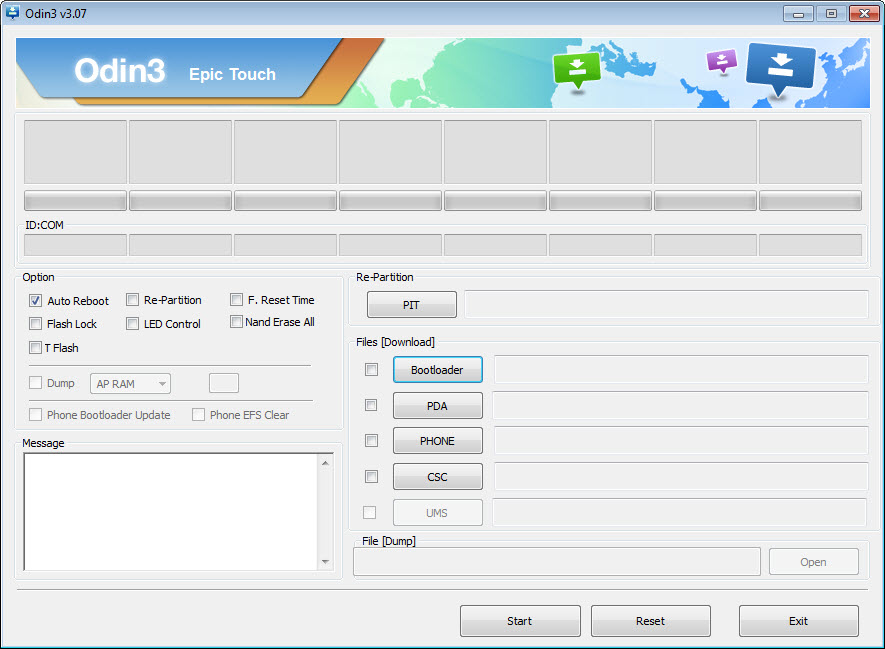
The interface presents several file slots, each corresponding to specific partitions or firmware components on Samsung devices. The main slots are typically labeled BL (Bootloader), AP (Application Processor / system), CP (Core Processor / modem), and CSC (Consumer Software Customization / region-specific content).
Different flashing scenarios use different combinations of these slots. A complete firmware install typically requires all four files, while specific operations like installing only a custom recovery might use just one slot. Understanding which file goes in which slot matters significantly, since putting files in the wrong slots can result in failed flashes or worse, partially corrupted firmware that prevents the device from booting.
For users following guides, the guides typically specify exactly which files go in which slots. For users improvising or working with non-standard firmware sources, additional research is essential before pressing the start button.
Download mode access requirements
Before this software can do anything, the target device must be put into download mode through a specific button combination. The exact combination varies by device model, but typically involves pressing combinations like Power + Volume Down + Home, Power + Volume Down + Bixby, or connecting to a computer while pressing Volume Up + Volume Down.
A significant change in 2026 affected this workflow. Samsung began requiring users to enable Maintenance Mode in the system settings before download mode access becomes possible on newer devices. This change adds an extra preparatory step for users on recent Samsung firmware versions, although the underlying flashing process remains essentially the same once download mode is reached.
For older devices and older firmware versions, the traditional button combinations still work directly. For newer devices, checking documentation specific to your model and current firmware version saves frustration during the setup process.
USB drivers and Windows configuration
Successful operation of this software depends on having appropriate Samsung USB drivers installed on the computer. Without proper drivers, the application can’t communicate with the connected device, resulting in connection failures that look like hardware problems but are actually just driver issues.
Samsung distributes USB drivers separately, and most users install them as part of their initial Odin setup process. The drivers handle the low-level USB communication that allows the thor protocol to work, and getting them installed correctly is typically the first thing to verify when connection problems occur.
For Windows-specific quirks like driver signature enforcement and other security features that can interfere with low-level hardware communication, additional configuration may be required depending on your specific Windows version and security settings.
Options and configuration for different scenarios
Odin3 includes various options that affect how flashing operates. Auto Reboot determines whether the device automatically restarts after flashing completes. F. Reset Time controls timing for certain flash operations. Re-Partition is a particularly important option that determines whether the device’s partition layout is reset during flashing, which is sometimes necessary for major firmware changes but can cause data loss if used inappropriately.
These options aren’t typically things users adjust on every flash. Standard flashing scenarios use specific recommended settings that guides usually specify, while changing options without understanding their effects is one of the more common ways users end up with bricked devices.
Recovery from problematic firmware states
One of the more valuable use cases for this software is recovering devices that have ended up in non-functional states through other modifications or failed updates. Samsung devices with broken software can often be returned to working condition by flashing a complete official firmware package through this tool, which restores the system to a known-good state.
This recovery capability is the main reason serious Samsung modders keep this software available even if they don’t actively use it for routine modifications. When something goes wrong with a custom ROM, a failed root attempt, or just a corrupted update, having the means to restore the device to factory firmware is a significant safety net that the official Samsung tools typically don’t provide outside of authorized service centers.
Knox Warranty Bit and modification consequences
Samsung devices include a hardware-level security feature called Knox Warranty Bit (also referred to as Knox tripping). This bit gets permanently flipped when the device boots non-Samsung-signed firmware or modified system files, and once flipped, it can’t be reset through any software means.
The practical consequences of a tripped Knox bit are significant. Samsung Pay stops working, Secure Folder becomes inaccessible, and various other Samsung-specific security features become permanently unavailable. The device’s hardware warranty is also typically voided. For users who depend on these features, considering this consequence before flashing custom firmware is essential.
For users flashing official Samsung firmware in unmodified form, the Knox bit isn’t typically affected since the firmware is properly signed by Samsung. The bit only trips when non-official or modified firmware is installed, which makes the distinction between official firmware updates and custom modifications meaningful for users who care about preserving these features.
Conclusion
Odin3 occupies a particular niche in the Android ecosystem as the standard tool for low-level Samsung device manipulation. For users who actually need what it does, particularly those recovering bricked devices, installing official firmware updates ahead of regional rollouts, or working with custom modifications, the software delivers capabilities that no other tool quite matches.
It’s not a casual utility, and the consequences of misuse are severe enough that careful research before any flashing operation is essential rather than optional. But for users who approach it with appropriate caution and understanding, Odin3 has earned its place as the recognized standard for serious Samsung device work, with a long enough track record that the community has worked out solutions for essentially every common scenario users encounter.
Pros & Cons
- Direct firmware control beyond what user-facing tools allow
- Recovery capability for devices in problematic firmware states
- Support for installing custom recoveries and modified firmware
- Region change capability for users with appropriate hardware
- Free tool that doesn't require paid licensing
- Long history of community support and documentation
- Standard tool for Samsung-specific flashing operations
- Not officially distributed by Samsung for end-user use
- Incorrect use can result in completely non-functional devices
- Custom firmware flashing permanently trips Knox Warranty Bit
- Requires proper Samsung USB drivers for any operation to work
- Maintenance Mode requirement on 2026+ devices adds setup complexity
- Not all firmware versions and devices behave consistently with all Odin versions
Frequently asked questions
This software communicates with Samsung devices in download mode through Samsung's thor protocol, allowing direct flashing of firmware images to various partitions on the device. It's used for installing official firmware, custom recoveries, downgrading firmware versions, and recovering devices from problematic software states.
No, this software is an internal Samsung tool used by their own technicians and authorized service centers. Publicly available versions are leaks from those internal sources rather than officially distributed downloads. The XDA Developers forum is generally considered the most reliable source for verified versions.
For flashing official Samsung firmware in unmodified form, the warranty typically remains intact. However, flashing custom firmware, custom recoveries, or modified system files trips Samsung's Knox Warranty Bit at the hardware level, which permanently voids the warranty and disables features like Samsung Pay and Secure Folder.
These represent different partitions or components of Samsung firmware. AP is the application processor (main system), BL is the bootloader, CP is the core processor (modem/baseband), and CSC is the consumer software customization (region-specific content and settings). Different flashing operations use different combinations of these files.
For older Samsung devices, button combinations like Power + Volume Down + Home or Power + Volume Down + Bixby typically work. For 2026 and newer devices, Samsung now requires enabling Maintenance Mode in system settings before download mode becomes accessible. Checking documentation specific to your device model resolves most access issues.
Yes, incorrect use can result in non-functional devices. Common causes include flashing wrong firmware files, using files intended for different device models, interrupting the flashing process, or using incorrect option settings during flashing. Following established guides specific to your device model significantly reduces this risk.
Firmware files are tied to specific device model numbers and regions. Sites like SamMobile and Samfw maintain databases of official Samsung firmware organized by device model and region. Using firmware intended for a different model or region than your actual device almost always results in problems, sometimes severe ones.
Detection issues almost always trace back to USB driver problems. Installing the correct Samsung USB drivers from Samsung's official driver download is typically the first troubleshooting step. Trying different USB ports, different USB cables, and verifying download mode is actually active on the device can resolve other detection problems.


